



Installing RamTV with CloudPanel (NGINX)
NGINX routing, PHP site, database, SSL, and cron
This guide installs RamTV on a VPS managed by CloudPanel. CloudPanel serves PHP sites with NGINX and PHP-FPM, so RamTV's supplied .htaccess files alone cannot route requests. Add the NGINX rules below in CloudPanel's Vhost Editor before completing RamTV's standard installer. This recipe assumes a current RamTV release with NGINX support.
Before you start
- Have a server with CloudPanel installed, the complete RamTV release package and purchase code, SSH or SFTP access, and a final domain or subdomain. CloudPanel's Generic PHP application guide covers the site workflow.
- Use one hostname consistently for DNS, the CloudPanel site, SSL, and RamTV's licence URL. The examples below use
music.example.com, the site usermusic, and/home/music/htdocs/music.example.comas the document root. - In Cloudflare DNS, point an A record for
musicto the server's public IPv4; use@for the main domain. Keep it DNS only during setup so certificate issuance and origin checks are easy to diagnose. The Ubuntu RamTV guide covers Cloudflare DNS and optional server tools.
1. Create a Generic PHP site
In CloudPanel choose + Add Site → Create a PHP Site, set Application: Generic, enter the final hostname, choose PHP 8.3 or newer (RamTV requires it), and set a site user and password. CloudPanel's Generic site guide and Add Site guide show this form. Keep the root directory at the site root; RamTV's index.php belongs directly there, rather than in a public/ subdirectory.
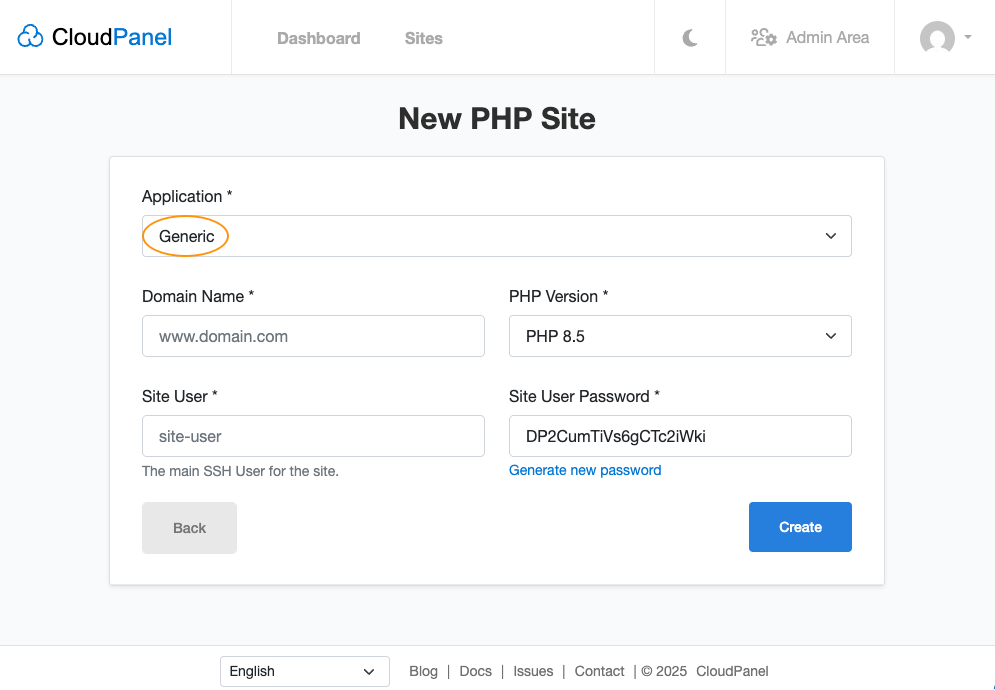
Create a Generic PHP site for the final RamTV hostname. Screenshot: CloudPanel documentation.
CloudPanel's site path pattern is /home/$siteUser/htdocs/$domainName/$rootDirectory; with an empty root directory it is /home/music/htdocs/music.example.com in this example. You can confirm the actual path on the site's settings screen. In the PHP settings, enable RamTV's required curl, mysqli, mbstring, gd, and zip modules, and confirm allow_url_fopen. Compare the live values with RamTV's Requirements step; raise upload, POST, memory, and execution limits for your expected media imports.
2. Create a database and upload RamTV
Open the site's Databases → Add Database. Enter a database name, database user, and strong password, then save them for RamTV's Database step. Use the local database host shown by CloudPanel; do not use the database master account for the application. The CloudPanel database guide shows the fields and export procedure.
Upload the complete RamTV package through the File Manager or as the site user through SFTP/SSH. Extract it so index.php, api/, admin/, installer/, and the root .htaccess are directly in the document root. Preserve all supplied .htaccess files: NGINX does not apply them, but RamTV's installer checks that those release files have not been changed. Keep application files owned by the CloudPanel site user.
3. Add RamTV routing in the NGINX Vhost
Go to the site's Vhost Editor. CloudPanel's Vhost guide says the editor checks NGINX syntax and reverts invalid changes. Save a copy of the generated vhost first. Inside the existing server block, replace the Generic template's server-level try_files $uri $uri/ /index.php?$args; line with these RamTV locations. Keep CloudPanel's SSL, PHP-FPM, logging, and generated template directives. These routes adapt the RamTV NGINX guide to CloudPanel's Generic template.
location / {
    try_files $uri $uri/ /index.php?_st=nginx&_lc=root&q=$request_uri;
}
location /admin/ {
    try_files $uri $uri/ /admin/index.php?_st=nginx&_lc=admin&q=$request_uri;
}
location /api/ {
    try_files $uri $uri/ /api/index.php?_st=nginx&_lc=api&q=$request_uri;
}
location /api/be/ {
    try_files $uri $uri/ /api/admin.php?_st=nginx&_lc=aapi&q=$request_uri;
}
location ^~ /api/app/ { deny all; }
location ^~ /BOF/app/core/ { deny all; }
location ^~ /files/protected/ {
    rewrite ^/files/protected/(.*)$ /protector.php?path=$1 last;
}
Use ^~ on the two private source directories so the Generic template's static-file regex cannot override the access block. The protected-media path also needs to reach protector.php rather than be served as a static file. Do not mark the general /admin/ or /api/ locations ^~: the PHP location must still handle direct PHP requests. Keep the supplied dotfile-deny and PHP-FPM locations in CloudPanel's vhost.
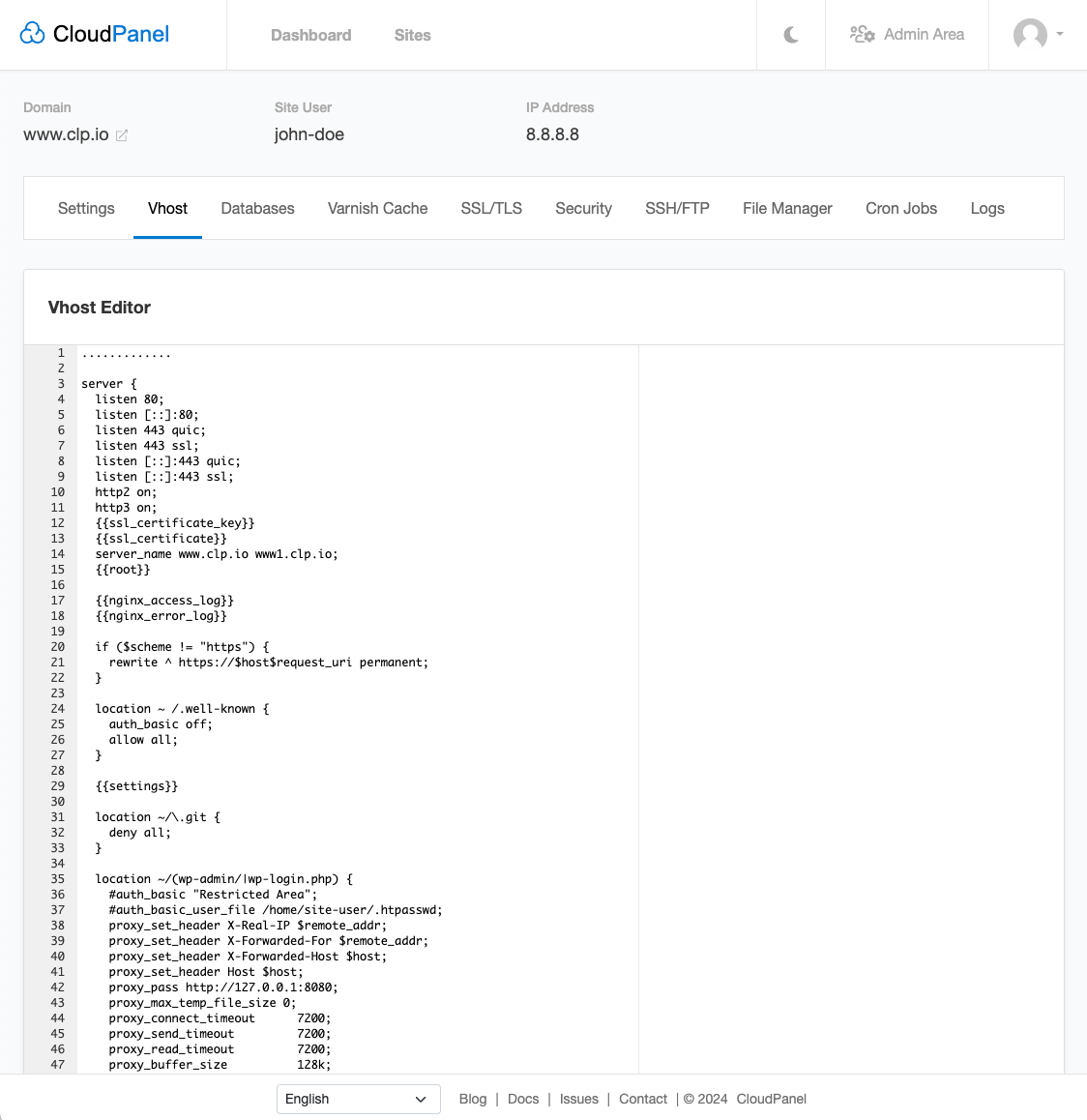
Edit the generated NGINX vhost and save after CloudPanel accepts its syntax. Screenshot: CloudPanel documentation.
Reload the website after saving. If RamTV says .htaccess is not working, first confirm that the release's .htaccess files are present, then verify the NGINX rules, document root, and /api/client_config route. On NGINX the installer uses that route check even though NGINX itself does not read .htaccess. Also confirm that /api/app/ and /BOF/app/core/ cannot be fetched and that protected media require RamTV's access logic.
4. Enable HTTPS
After DNS points to the server, open the site's SSL/TLS tab and issue a Let's Encrypt certificate for the exact hostname. CloudPanel initially uses a self-signed certificate; its SSL/TLS guide shows the replacement flow. Confirm the public HTTPS site loads before entering the final URL in RamTV. If you later enable the Cloudflare proxy, use Full (strict) with a valid origin certificate.
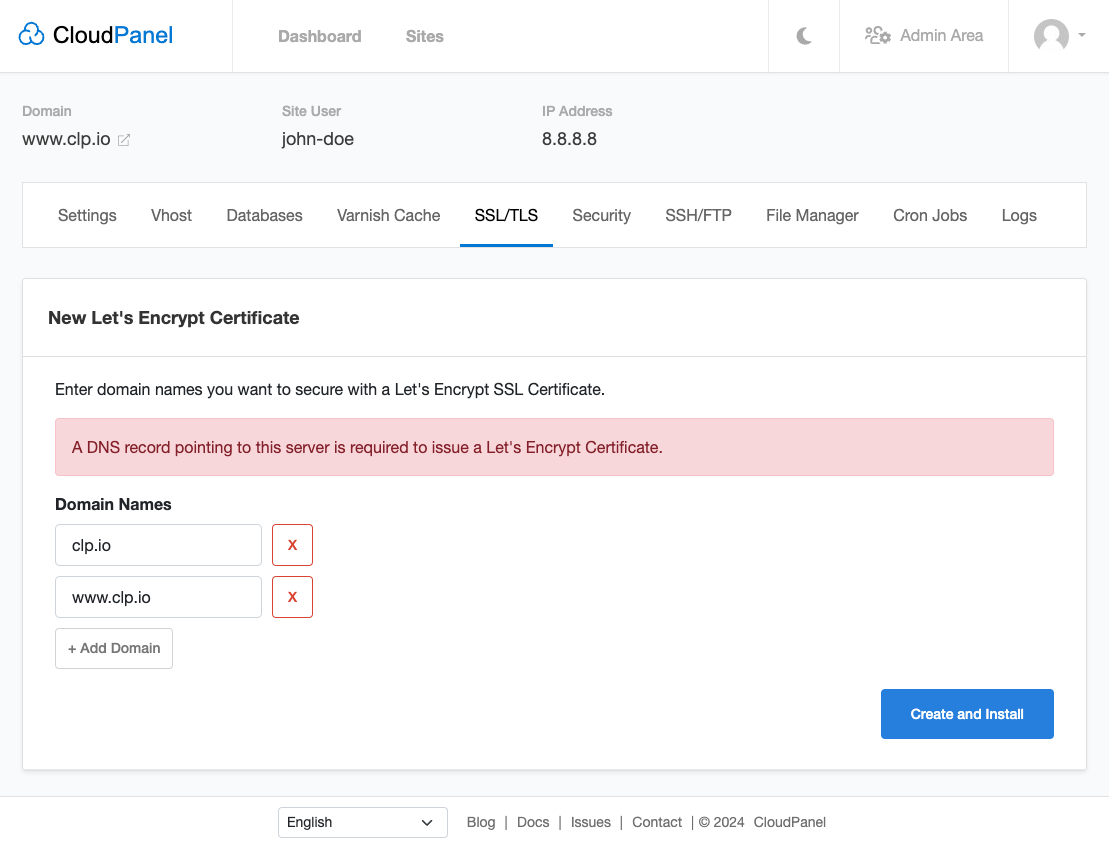
Install a certificate for the RamTV hostname. Screenshot: CloudPanel documentation.
5. Run the installer and schedule cron
Open the HTTPS URL and complete RamTV's installation steps with the database credentials you saved. For the Server step, add a scheduled task under the site's Cron Jobs tab. CloudPanel's Cron Jobs guide shows the template, schedule, and command fields. Choose a one-minute interval and use the command printed by RamTV, with the actual PHP CLI binary and installation path.
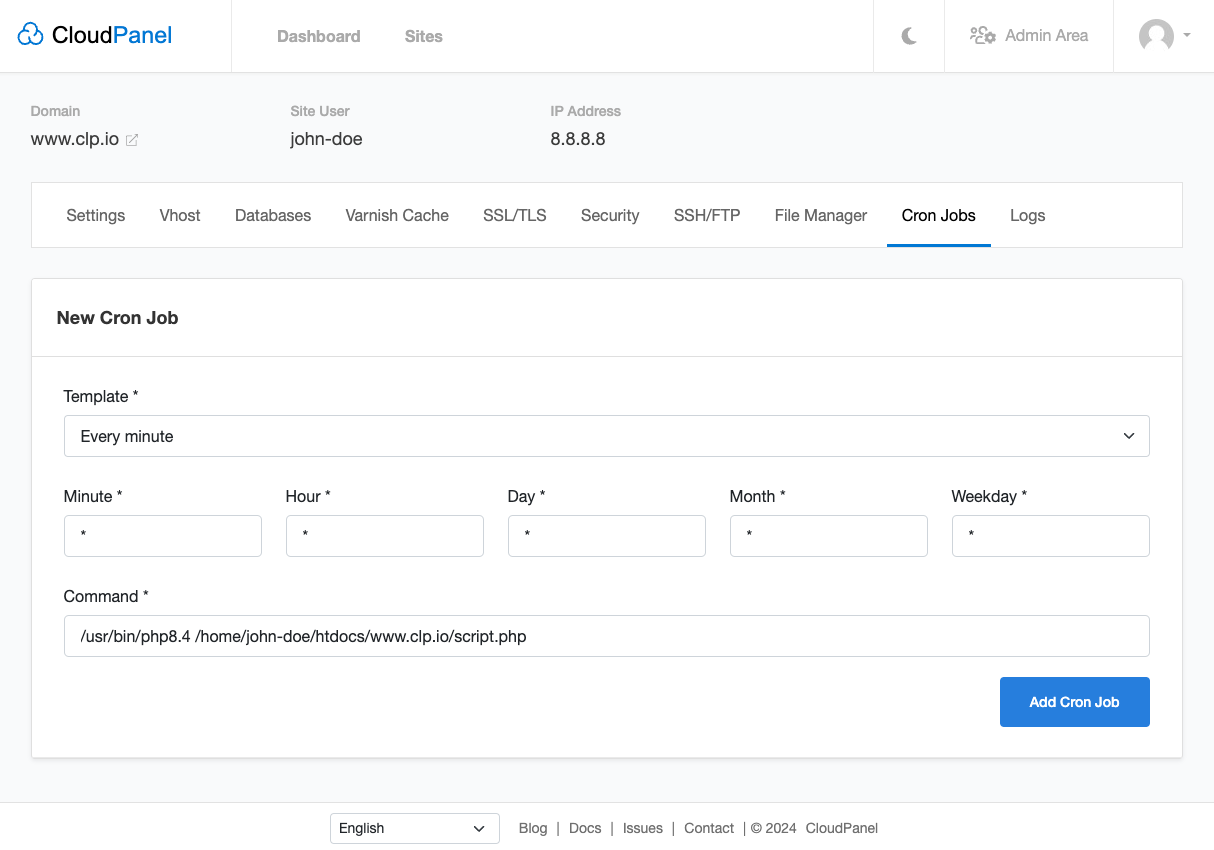
Add the RamTV command as a one-minute cron job for the site user. Screenshot: CloudPanel documentation.
For this example, the command has this shape. Confirm your server's PHP CLI name with command -v php8.3 and use the version assigned to the site; CloudPanel's PHP application examples use versioned PHP CLI commands.
php8.3 -f /home/music/htdocs/music.example.com/api/admin.php bof_cronjobs=yesRun the task once or check its output/log, then refresh RamTV's Server step after a minute. If it remains red, check the command path, CLI PHP extensions, and file ownership. Finish First run, remove the installer directory, and confirm admin sign-in, API routes, upload, protected media, and HTTPS. CloudPanel backs up databases nightly with seven-day retention; keep separate off-server copies of the RamTV files and media as well. For FFmpeg, Meilisearch, yt-dlp, image formats, and Node.js, follow the optional tools section in the Ubuntu guide after the base site works.