



Lorem AI
Generate artwork, copy and catalogue metadata
Lorem AI is a free RamTV tool that can generate images, catalogue copy and selected metadata for supported items. It can also draft SEO fields. Review generated results before relying on them: prompts and provider responses can be wrong or unsuitable for your website.
The available item types depend on the plugins you have installed. On RamTV, Lorem AI supports Movies and TV Series, including poster and background art, taglines, storylines and selected catalogue fields.
Choose the text and image providers you want to use under AI API setting. You can use OpenAI, Google Gemini or OpenRouter. Provider accounts, credentials and usage charges are managed by those providers.
How to use Lorem AI?
Install Lorem AI from Setting → Tools first. In Modules → Lorem AI → AI API setting, choose a provider for text and/or images and enter its credentials. Test with one item before enabling a background run.
You can run Lorem AI for one item manually, or enable scheduled runs for selected item types. The scheduled option needs your website’s cronjob to be working.
- Automatic: In Modules → Lorem AI → Cronjob, enable Lorem AI and the item types you want. Open an item-type page under Lorem AI to set filters and actions before running it across the catalogue.
- Manual: Open a supported item in its admin list, use its three-dot menu, and choose Lorem AI - Run. Review what the run produced.
How to configure Lorem AI & prompts?
Under Modules → Lorem AI, open an item type to choose which fields to generate, set filters and edit the main and field-specific prompts. The available actions differ by item type.
For a movie or TV series, start with one action such as a spoiler-free synopsis or poster image. Run it on one title, review the result, then add other fields or enable automation.
Lorem AI uses the item and its configured prompts to ask your chosen provider for a response, then applies supported results to the item. Test changes on one item first and check the edited fields, especially facts and generated images.
How to experiment with prompts?
Start with the supplied prompts and adjust them for your audience. A prompt change can affect style and factual accuracy, so review a small sample before scheduling broad use.
To test your setup:
- Choose a provider and edit one item-type prompt under Modules → Lorem AI.
- Run Lorem AI manually on a test item and review its generated fields.
- If the result is suitable, enable the relevant automatic run under Cronjob.
Playground
Use Modules → Lorem AI → Playground to try image prompts and provider settings before using a prompt on catalogue items. Where a prompt uses %query%, Lorem AI substitutes the current item’s subject when generating an image.
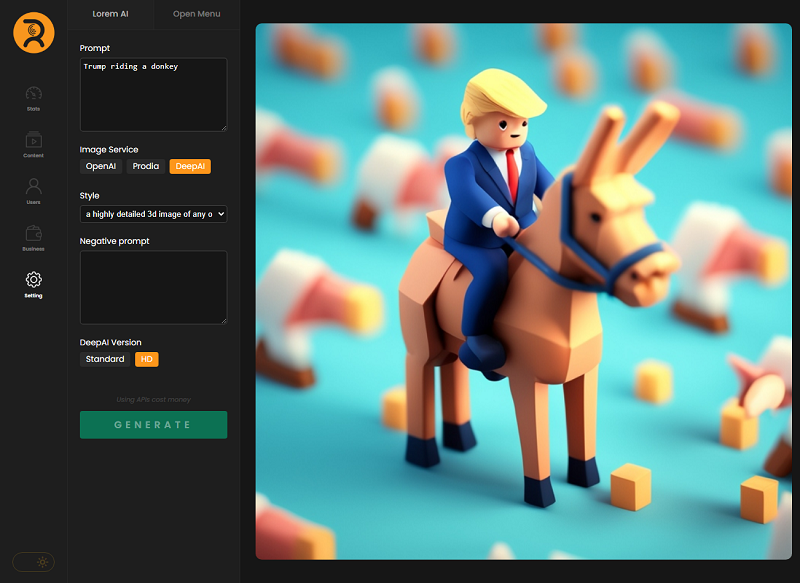
Examples
For example, use the Movie page to generate a poster or short storyline for one title. Check the image and facts before using the same actions for more of your catalogue.