



Updating
Move to a new release while preserving your changes
Automated
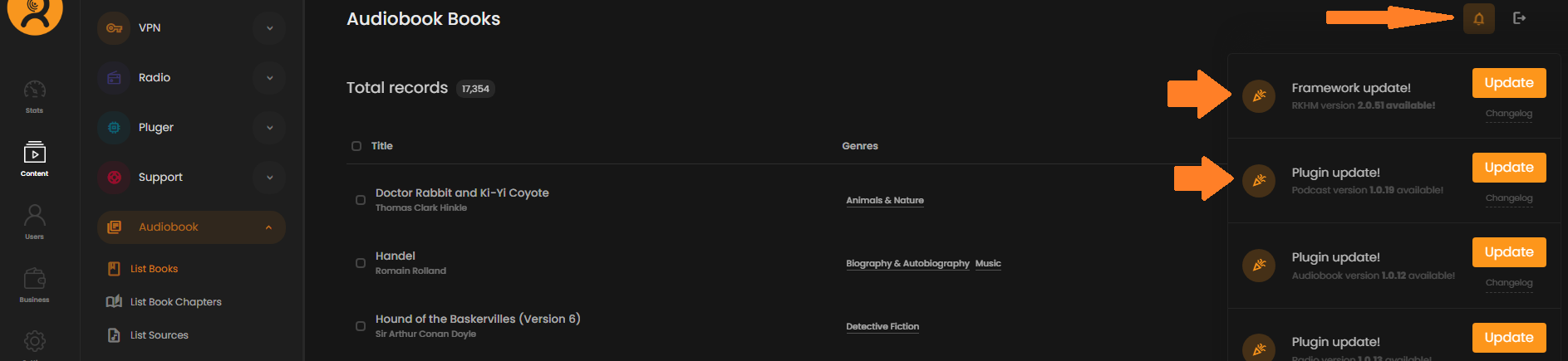
When a new release is available, the admin panel shows a Framework update! notice with Update and Changelog buttons. Click Update, read the changelog in the confirmation window, then confirm. Read it first if your site uses a custom theme, custom plugins or external services.
Updates keep coming after your support period ends. The confirmation window then shows a short reminder to renew support before it continues.
Extensions
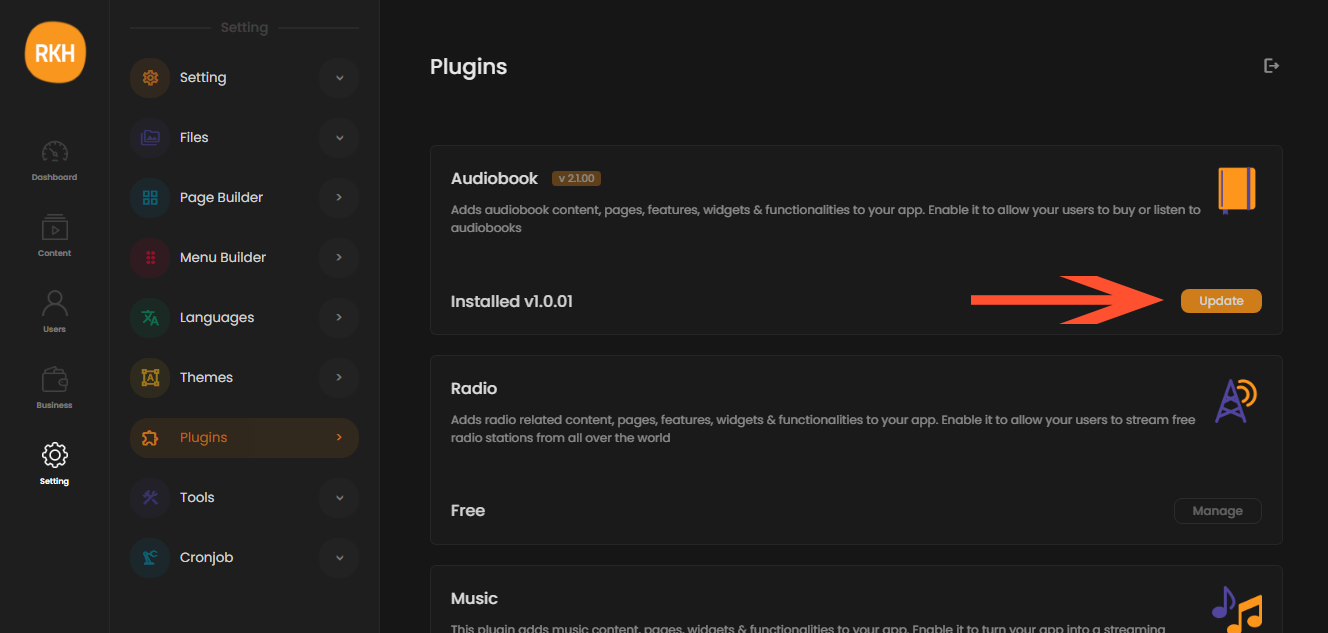
Plugins, tools and themes update the same way: each shows its own update notice, and an Update button on its manager page (Setting → Plugins, Tools or Themes). Extensions can't be installed or updated while RamTV itself is behind; the panel tells you which version to update to first.
Before you update
Back up your database and the full installation, including uploaded files, your configuration, themes and plugins. Confirm that you can restore the backup or take a server snapshot. Test updates on a staging copy if your site has custom changes.
An update replaces RamTV's own files, and a theme or plugin update replaces that extension's files. Keep your own changes in a custom plugin so they survive updates — see Customize 101.