



User Roles
Choose what guests, members and staff can access
You can give different access to different users in both admin-area & client-end
There are two master group: client-end role & admin-area role. Client-end roles only effect client-end, users that only have client-end role(s) can't login to admin-area
There are different types of user-roles which can be extended by adding plugins or tools. By default there are 4 user-roles:
- Guests: Default role for people that haven't logged in to your app. You can change app's behavior towards guests by editing this role. A client-end role
- Users: Default role for people that have logged in to your app's client-end. You can limit users' access by editing this role. Users can't login to admin-area. A client-end role
- Moderators: Semi-admins. By default no users are assigned to this group. Moderators can login to admin-area but they can't login to client-end unless they belong to a "User" group as well. Moderators' access to admin-area can be limited to certain activities/objects. An admin-area role
- Admins: This role can't be edited. Anyone belonging to this role has access to everything but "Pluger". Pluger is responsible for updating script/plugin/tool/theme which can only be executed by root ( first ) admin. An admin-area role
Currently, the following user-roles are also added to system if you install certain extensions:
How roles are assigned
Roles can be assigned to different users in two ways:
- Manually: Go to "Users -> User List -> All users -> Edit user" and add or remove roles.
Be very careful when editing this option - Automatically: Some roles are assigned automatically by the system. For example when you make a user the manager of an artist, the "Artist manager" role is applied to that user automatically, and a subscription plan applies its role for as long as the plan lasts
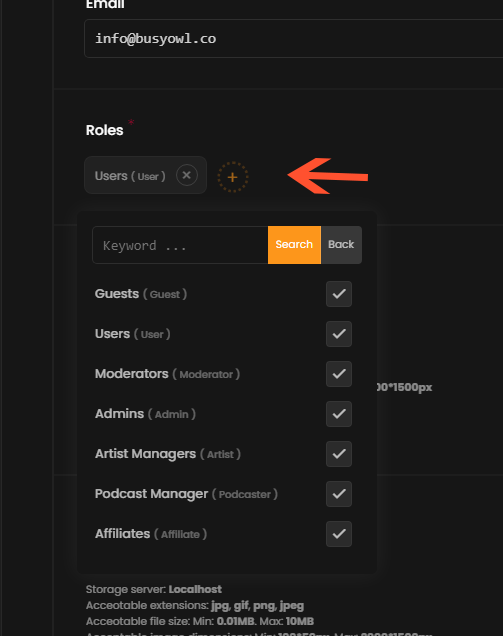
Client-end roles
There can only be 1 role for guests which is the "default guest role" but you can create as many user roles as you wish. By default, all users belong to the "default user role" but they can be assigned to other roles manually or automatically as well. This can be used to create separate groups of clients with different types of access. You can create Subscription plans linked to a role and as soon as a user purchases that plan, the linked role will be assigned to user until the duration of purchased plan expires. You can use this for example, to display advertisement for ALL users while offering a subscription plan which is linked to a role that hides the advertisement
User & Guest role common options
- Player supported types: RamTV's player can play more than just audio. You can choose what types of sources users have access to.
Warning: If you wish to completely disable a certain type for all user-roles, do it in Setting → Interface → Player → Supported Sources Display Advertisement: Left unchecked, any user belonging to this role will be free from advertisement Download content: Enable to allow users belonging to this role to download downloadable-sources from your app. Download is 2 types: In-app, To device. For more on in-app downloads, see File Protection → Downloads and offline playback Download supported sources: Choose which types of sources should be downloadable for client Change language: Should users belonging to this role be able to change language of your app?
Guest role options
- Signup: Can guests use the signup form to create an account? Disabling this option doesn't effect "Social login"
- Signup verification required: Enable it to activate email verification. Guests have to verify given email before they become able to use your app
User role options
- Upload content: Allow this role to use the client-side uploader. Installed plugins may add separate switches for content types and allowed source types. Enable only the types and sources you want this role to submit.
- Premium content access: See below
User role premium content access option
You might have some priced or premium content on your website. You can sell them separately, or you might want to offer one or more subscription plans. Or maybe you just want to give your friend access to all premium HipHop music on your app. You can do it very easily using the "premium content access" option. By default, it is set to "None" but you can change it to "Some" or "All". If you change it to "All", all users belonging to this role will essentially have access to ALL premium content on your app. Your app is free-to-use for them ( you can still annoy them with ads tho! ). If you set the option to "Some", several other options will appear depending on how many extensions you have installed on RamTV.
"Access by" options
First input ( or first few, if you have certain extensions installed ) are dedicated to giving free access to specific types of premium content
First input named "Premium blog- access by post" is designed to allow you to give all users belonging to this role, access to premium contents ( blog posts in this case ) by setting filters
For example, imagine you have a priced blog post named "Premium guide to become awesome" priced $99. You have a user role named "premium". If you choose the post in "Premium blog- access by post", all users belonging to "premium" user role, will have free access to the post and won't have to purchase it
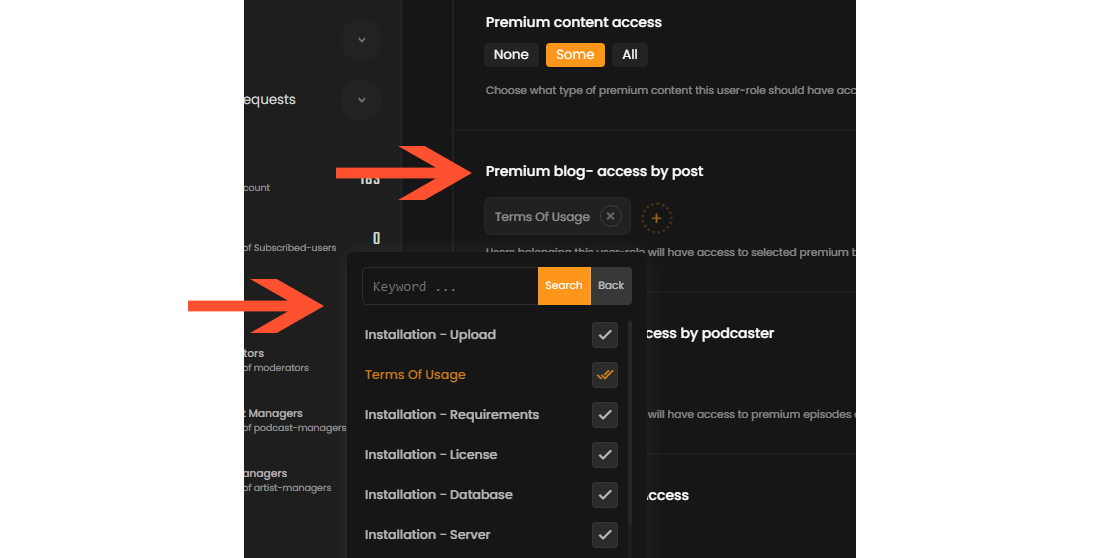
Another example, imagine you have installed "Music" plugin and you have many priced items. You can give specific users free access to all "HipHop" music tracks/albums by selecting "HipHop" as "premium music - access by genre"
Download premium access / Player premium access
Another way to give specific users, specific access to premium content is giving "Download/Player premium access". How they work is, you can select one or more "player source" and it will give users belonging to this group, access to ALL ( free & premium ) sources of that kind. For example, additional to creating demo for uploaded premium audios you can give everyone access to lower qualities such as 64kb
Admin-area roles
Admins and moderators can access the admin area. Installed plugins may add other admin-area roles.
Admin role
There are no setting for Admins, only first user is assigned to this role by default. Be very careful assigning other people admin role. They will have access to absolutely
Moderator role
Moderators roles are not assigned to anyone by default or automatically and they can be micro managed to give very specific access to certain users. To edit a moderator role, click on edit in "Roles & Access" page in RamTV admin-area. In the new page, you can choose to set "Moderator access type" to "all" which will make this role a semi-admin role, they will have access to most of admin-area, they can create/read/update/delete any object but they won't have access to some features, like plugin-manager, theme setting, brand setting and etc. Alternatively, you might need to give very specific access to certain users, to do that, set "Moderator access type" to "Only checked". New inputs will appear as image below:
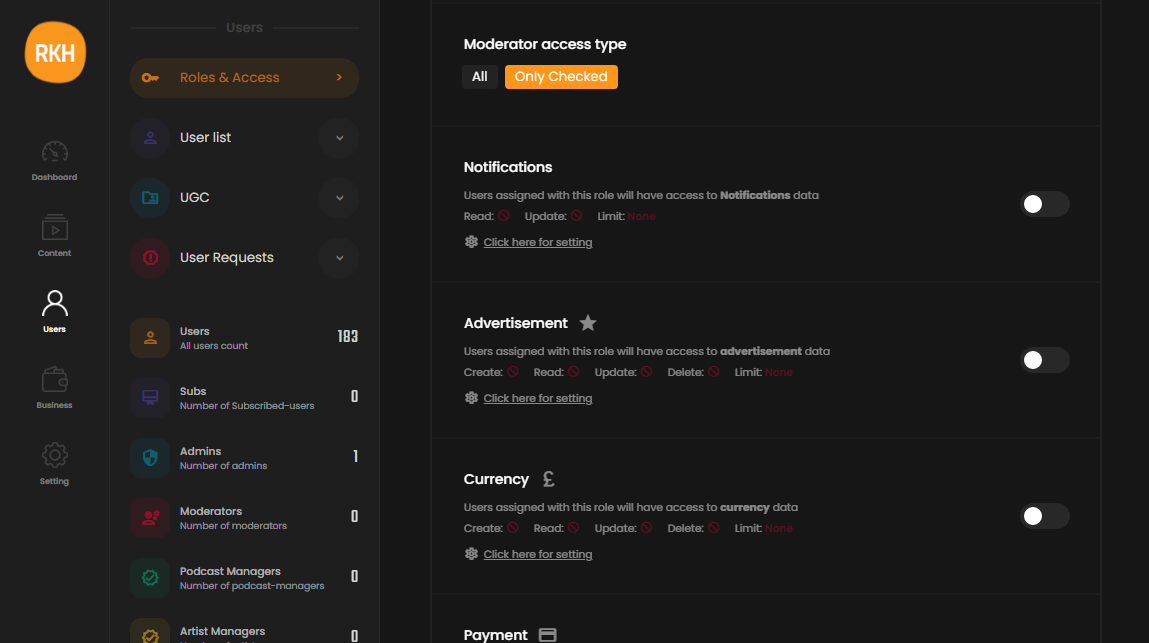
There can be up to 98 objects presented in this page depending on how many extensions you have installed. In order to give this role access to a certain object, first enable access by clicking on the checkbox on the right. Then click on "Click here for settings" and a pop-up will open that has 2 tabs: CRUD access , limits
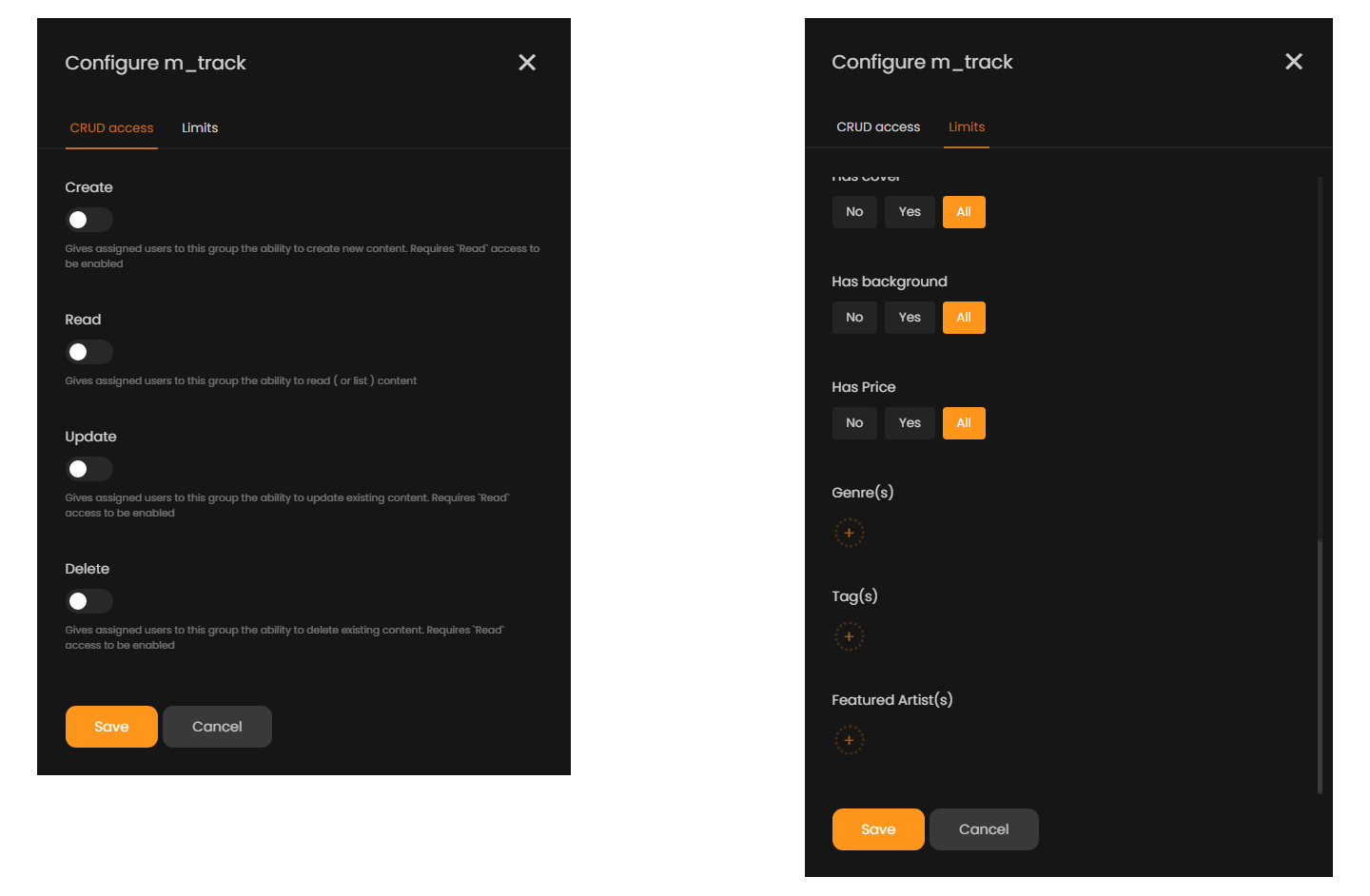
In first tab, you set what users belonging to this role can do in admin-area. Moderators can create / edit & remove content. Read access is required for all other options
In the second or "Limits" tab, you can limit what moderators can manage in admin-area. For example, you can create a moderator role that only has read/edit access to "Pink floyd" albums. When a user belonging to this moderator role login to admin-area, only Pink floyd albums are listed for them, they can't remove any item, can't create anything but they can edit everything they see. Or you can create moderators that only have access to unverified payments in past 48 hours so they can reject/approve them without having access to all of your payment history
How multiple roles work?
A user might have multiple client-end or admin-area roles. In short, multiple roles get merged in the way that benefits the user most
For example, imagine a user belongs to 4 different roles. 3 of them have "Display Advertisement" enabled, which is essentially a disadvantage, when script is merging these 4 roles, "Display advertisement" will be calculated as disabled just because 1 of the roles had it disabled
To give another example, imagine a user belongs to 5 different roles & 4 of them have "Upload" disabled. Being able to upload is an advantage, so the output of merge for "Upload" will be enabled because 1 of the roles had it enabled