



Installation - Upload
Download the files and your purchase code
Download app files & purchase code
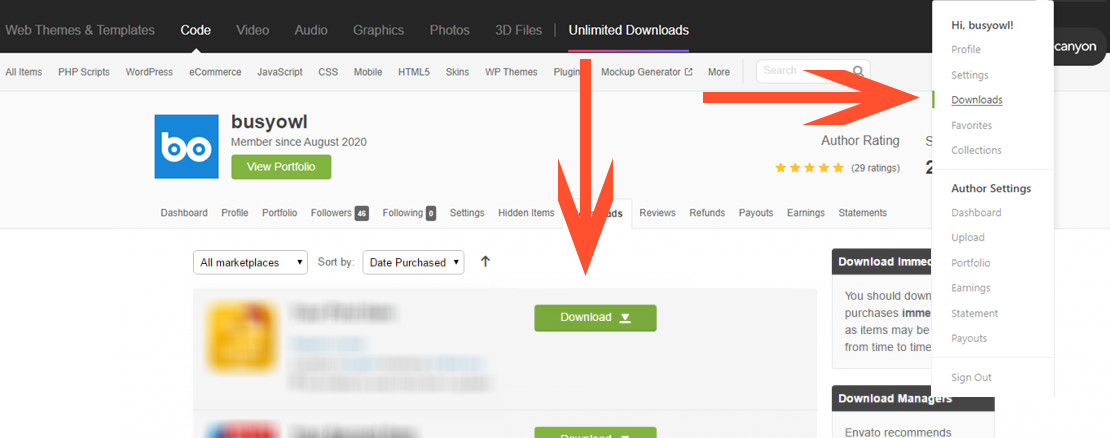
Head to your Codecanyon account, hover on the menu, select Downloads and wait to be redirected to download page. In download page, find RamTV, click on the green download button. You need to download "All files & documentation" + "License certificate + purchase code (txt)".
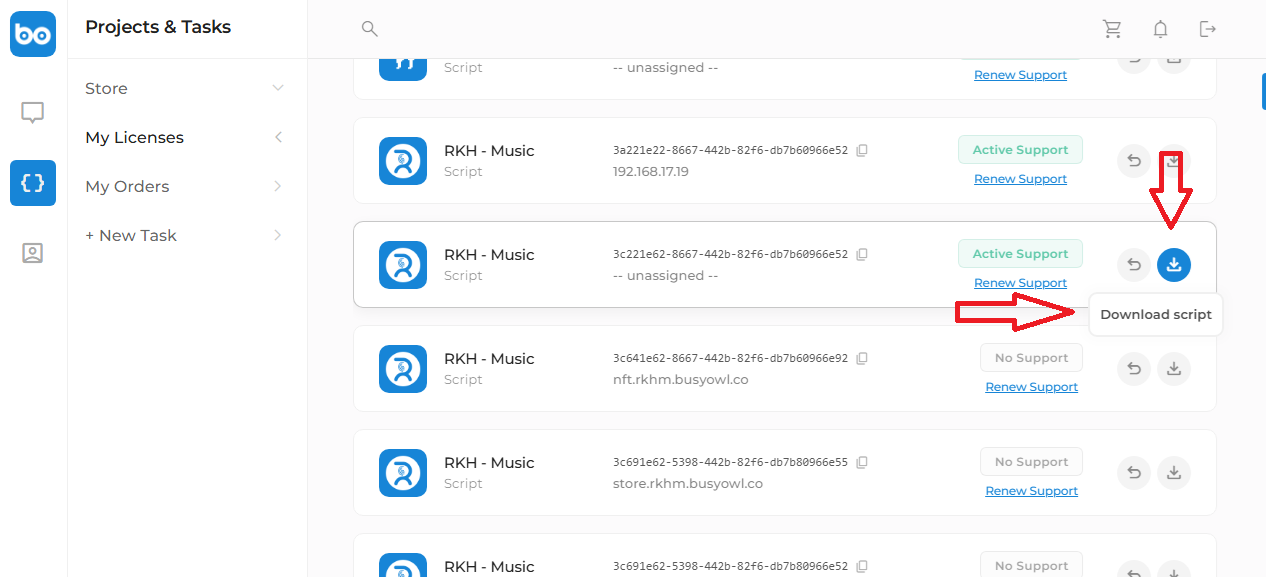
If you have purchased directly from us, visit your licenses in https://my.busyowl.co/user_licenses . You can download your project from this page as well
Prepare files for upload
If purchased from Codecanyon, you have downloaded 2 files from there . A zip file & a text file. Open the text file, find and copy your purchase code, you'll need it for step 2. Purchase code is in xxxxxxxx-xxxx-xxxx-xxxx-xxxxxxxxxxxx format.
If you have purchased from my.busyowl.co , then you only have 1 zip file. You can copy the purchase code directly from "my licenses" page
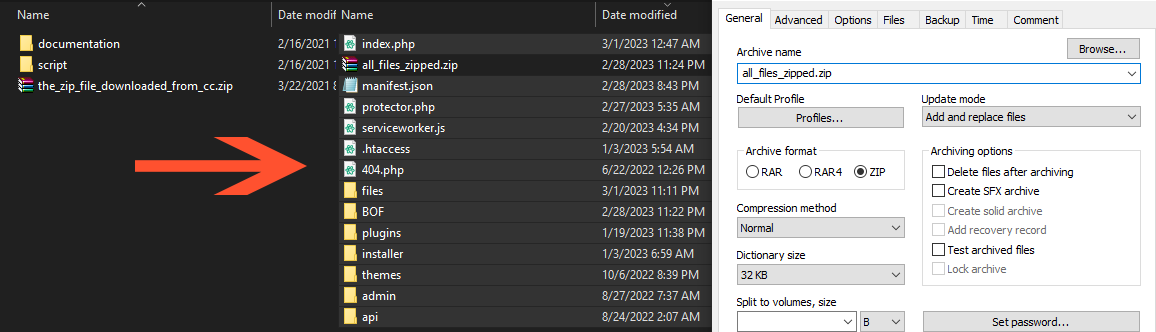
Unzip the zip file, there are two folders inside: documentation & script. Open the script folder and zip all files. Make sure you include all .htaccess files when zipping — this is the single most common reason an install fails partway through. .htaccess files are hidden by default in almost every file manager, FTP client and OS file picker, so a plain "select all, zip" can silently skip them even when you meant to include everything. Turn on "show hidden files" before you zip, and if your zip tool has a way to preview the archive's contents, check that a .htaccess file actually appears in the top-level script folder and inside api, admin and api/app before you upload. You need to upload the zip file you made and not the one you downloaded
Upload & extract zip file
Use your method of choosing ( FTP, cPanel's file manager, etc ) to upload the zip file ( the one you made ) to web root folder ( it's usually named public_html or www ) of your domain. We highly dissuade installing in a sub-directory, if you can't install in root folder, use subdomains instead
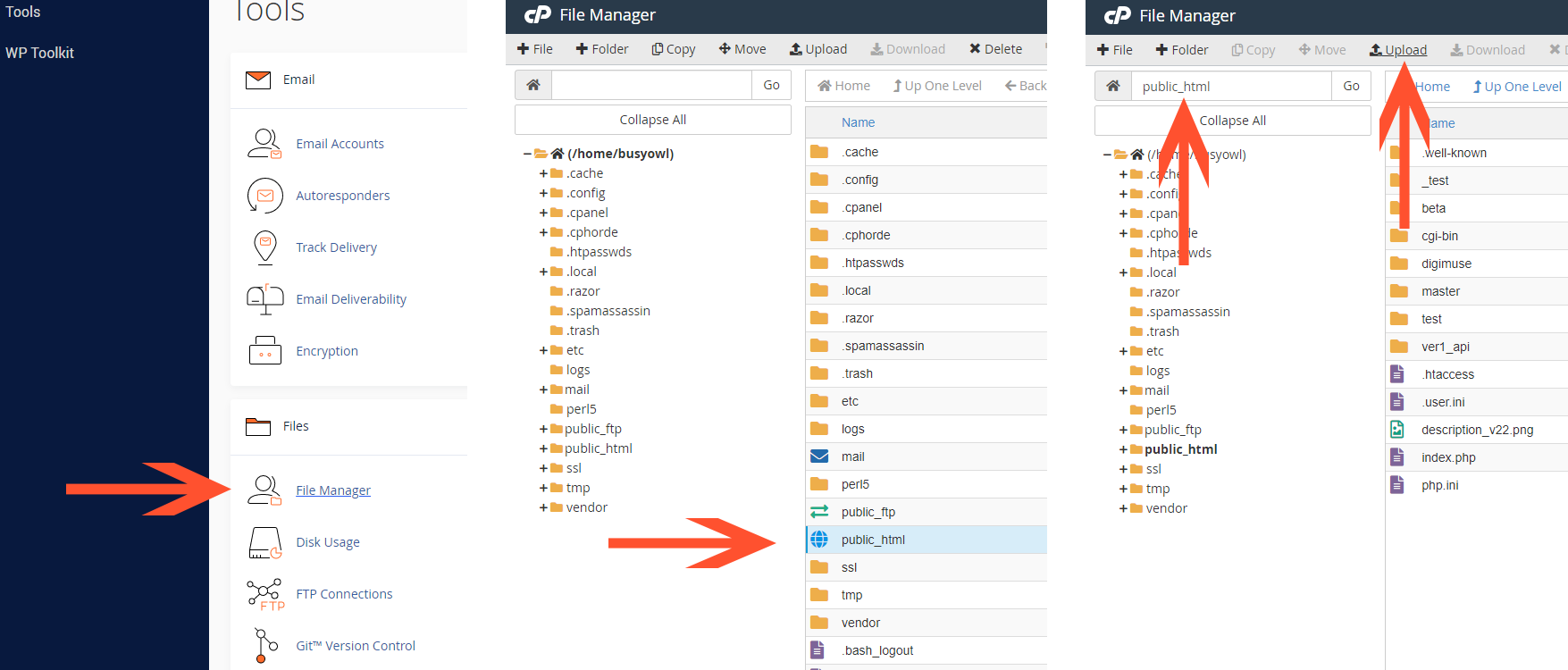
After uploading, you need to unzip the zip file, you can do that using SSH or cPanel's file manager. Don't forget to remove the zip file after unzipping. Find public_html in your cPanel's file manager, find uploaded zip file, right click on it and select "Extract"
Open installer
Open Google Chrome, head to yourwebsiteaddress.com/installer/ to access script's installer
Next - Installation - Requirements