



Cordova V1.1.00
Apps that update themselves: what changed and what to do differently
Apps that update themselves
Until now, an RKHM app was a snapshot. The day you built it, it carried a copy of RKHM's screens, and from then on your website kept changing while the app stayed the same. Sooner or later the two stopped agreeing, and the only fix was building a new app and getting everyone to install it.
Cordova V1.1.00 ends that. Your own server now prepares the screens of your app, and installed apps pick up the new version over the air: they download it, ask the user to restart, and carry on. No new store release, no reinstall, and nobody loses their login, queue or downloads.
This release also changes how apps are built: they now match the server they belong to, every build gets a proper version number, and the old "edit line 160 of index.html" steps are gone.
What's new, in short
- Over-the-air updates. Update RKHM, a plugin or your phone theme, press one button, and your users' apps follow.
- A new Mobile App page in the admin area with the status of your app bundle, Rebuild and Revert buttons, and your store links.
- An update screen that tells you what to do. When you update RKHM or a plugin, it says whether the update can reach your apps over the air or needs a new app build first.
- Safer apps. A broken update takes itself back, and an app that is too old for your server shows a clear "please update" screen instead of misbehaving.
- Better builds. The online compiler builds from a clean, current template and your own server's screens. Version numbers go up by themselves, which stops Google Play rejecting rebuilt apps.
- One app template for Android and iOS, and a one-click project download for building by hand.
- Fixes for problems that were hard to see before: see "Smaller things" below.
How it works
Think of your app as two parts:
| The screens (the bundle) | The app itself | |
| What it is | Everything you see and tap: pages, menus, buttons, the theme | The native shell: icon, name, splash screen, push notifications, background playback |
| Made by | Your own server, with one click | The online compiler (Android) or you (iOS) |
| Changes when | You update RKHM, a plugin or your phone theme | You change the icon or name, or an update needs new native features |
| Reaches your users | Over the air, within minutes | Through Google Play / the App Store (or an APK link) |
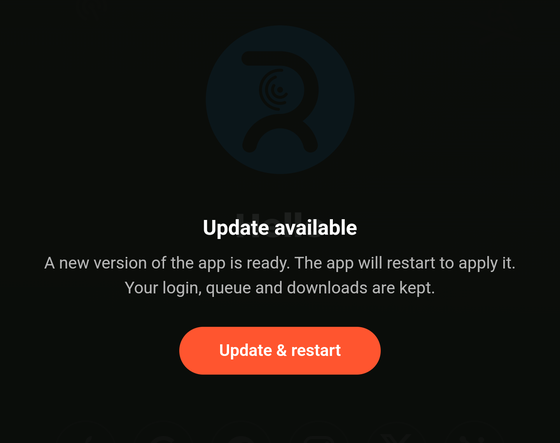
Every app has a built-in copy of the bundle, so it always starts, even with no internet. When your server publishes a newer bundle, the app downloads it quietly in the background, checks that it arrived intact, and then shows a short message: Update available, Update & restart. After the restart the app runs the new screens. Your server is always the boss: whatever bundle it publishes is the one apps follow.
Only the screens travel over the air. Anything native (a new permission, a new Cordova plugin, a new icon) still needs a new app build, and the update screen warns you when that is the case.
Before you upgrade
- Update RKHM and the Hybrid mobile app plugin together, to the releases that carry Cordova V1.1.00. See Updating and Managing plugins.
- Use HTTPS. Apps only download updates over a secure connection. If your site is on plain HTTP, apps keep running their built-in version.
- Open Admin area → Mobile App and fill in your store links (see below). Do this first, even if you don't plan to rebuild your app yet: apps built before V1.1.00 use these links to tell their users to update.
- Press Rebuild bundle once. Until you do, your server has nothing to hand to apps, and the online compiler will ask you to.
The Mobile App page
Open Mobile App in the admin area. At the top you see the state of your bundle:
- Up to date: apps get exactly what your server shows now.
- Outdated: RKHM, a plugin or your phone theme changed since you last rebuilt. Apps still get the old screens until you press Rebuild bundle. The same warning appears under Dashboard → Needs attention.
- Build failed: the last rebuild didn't finish. Apps keep the bundle they have. The page shows the reason.
- Not built yet: you haven't published a bundle.
Below the status you also see when it was built, its size, and the phone theme it contains.
The buttons
- Rebuild bundle builds the bundle from your server's current files and publishes it at once. If nothing changed since the last time, it just tells you so. It takes a few seconds.
- Revert to previous is the undo: it makes the bundle before this one the published one again.
- App project: iOS / Android gives you a zip with the app template, your current bundle and your server's addresses already filled in, for building by hand (see below). The download link works for one hour.
Store links
- Android app ID: the unique name of your app, for example
com.yourbrand.app. It becomes your Google Play link. - Android download link: optional. Use it instead if your app isn't on Google Play and people install it from an APK link.
- App Store ID: the number in your App Store link (the digits after
id). Leave it empty if you have no iOS app.
These links are what the "please update" screens open on your users' phones.
Your routine from now on
- Update RKHM, a plugin, or change your phone theme, as you always did.
- Press Rebuild bundle on the Mobile App page. (If you forget, the dashboard reminds you.) Edited a theme file by hand, with no version change? Press it then too: that is the one case the reminder can't see.
- That's all. Your users' apps offer the update the next time they open the app.
When you update RKHM or a plugin, the confirmation screen now starts with a line about your app:
- "This update can be delivered to your app over the air": go ahead, then press Rebuild bundle.
- "This update needs a new app build": build the new app first and publish it in the stores, give your users time to update, and only then update your server. Users still on the old app will be asked to update.
What your users see
- Update available. A small full-screen message with one button, Update & restart. If their screen was off, it appears when they come back to the app. The restart takes a moment, then the new screens are there. Their login, play queue and downloaded music stay as they were.
- Offline. Nothing changes. The app runs the version it has and downloads keep playing.
- If an update turns out broken. When a new version fails to start twice, the app quietly goes back to the previous one and doesn't try the broken one again until you publish a different one. Users don't see anything.
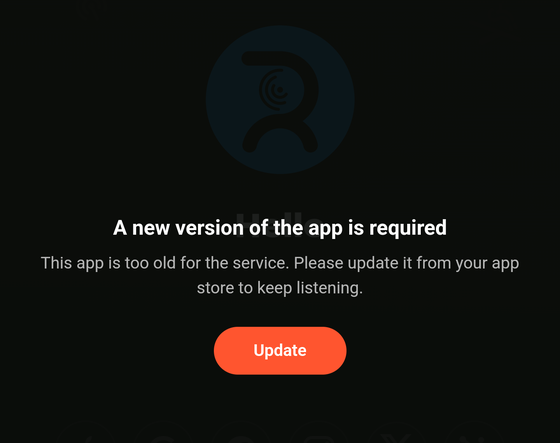
- If the app is too old. When your server needs a newer app than the one installed, users get a screen that asks them to update, with a button to your store link.
Apps you already published
Apps built before V1.1.00 can't update themselves, so they stay as they are until you build a new one. What changes for them:
- If you've set your store links, they show a full-screen "Please update the app" message with a button to the store. This protects your users from the old-app-meets-new-server problems the update was written to end.
- After a user installs one new build, almost every future update arrives over the air.
So the plan is: set your store links, build and publish the new app once (see below), and tell your users to update.
Building your app
Android, with the online compiler. The request form is the one you know, with a few differences:
- Your server must have a published bundle. If it hasn't, the compiler tells you to update the plugin and press Rebuild bundle, and doesn't start the build.
- The app is built from your server's own bundle, so what you install matches what your server shows, instead of whatever was around when the compiler last ran.
- Version numbers now count up by themselves. Each build of the same app ID gets the next number, so Google Play accepts it. If you already published this app earlier without our compiler, fill in the new optional field Last version code you published with the number of your latest release (you'll find it in the Play Console), and we count from there.
- The online compiler is Android only, and the existing rules (one build a week, six months after purchase) still apply. See Building Cordova apps.
iOS, or Android by hand. Press App project: iOS (or Android) on the Mobile App page. The zip you get already holds your bundle, your server's addresses and the key the app needs, so there are no lines to edit in index.html any more. Open PROJECT_README.txt inside: it lists what is left for you (app name and ID, icons, splash screen, push settings) and the few commands to build. iOS apps are still built by you, on a Mac. The step-by-step prerequisites are in Building Cordova apps, and what the app can do is in Cordova app features.
When your app is in the stores, you don't rebuild it for normal updates any more: you press Rebuild bundle.
Smaller things in this release
- No more endless loading screen. If something fails while the app starts, it now shows a Retry screen after about 45 seconds instead of a spinner that never ends.
- No more "stuck" app after a long time. The app used to keep every answer from your server on the phone without limit, which could eventually break logging in until it was reinstalled. It now keeps only what it needs to start offline, and a small amount of it.
- Offline start is more reliable, and the "No internet connection" message no longer appears on a phone that is online.
- Screens stay in step with your server. Before, an app could run old screens against a newer RKHM, which was behind the odd bugs where an app showed raw text or empty boxes after an RKHM update.
- Smaller apps. The Android app is about 29 MB lighter because unused font files were left out.
- Pinned versions. The plugins inside the app are pinned to exact versions, so two builds of the same app behave the same.
Good to know
- Is this allowed by the stores? Updates only change the app's screens and fix bugs, which both Google Play and the App Store allow. They can't turn your app into a different app. Anything native still goes through a normal store release.
- Will updates cost my users data? An update is about 0.7 MB. It downloads once, in the background.
- Can I stop an update? Press Revert to previous: apps follow the bundle your server publishes, so they will offer the older one.
- Does it work for the web app (PWA)? The web app already updates the usual way. This release is about the native apps.
- What do I do if a phone doesn't update? Check that your site uses HTTPS, that the Mobile App page says Up to date, and that the phone is online. A phone that refused a broken update won't try that same version again, so publish a fixed one with Rebuild bundle.
Related
- Cordova: what the native wrapper is, and whether you need it
- Cordova app features: what the app adds over the installable web app
- Building Cordova apps: compiling and signing your own builds
- Updating: moving to a new release without losing your changes
- Managing plugins: installing and updating the Hybrid mobile app plugin