Installation
Installation - Database
Create the database and hand the installer its credentials
Prepare the database
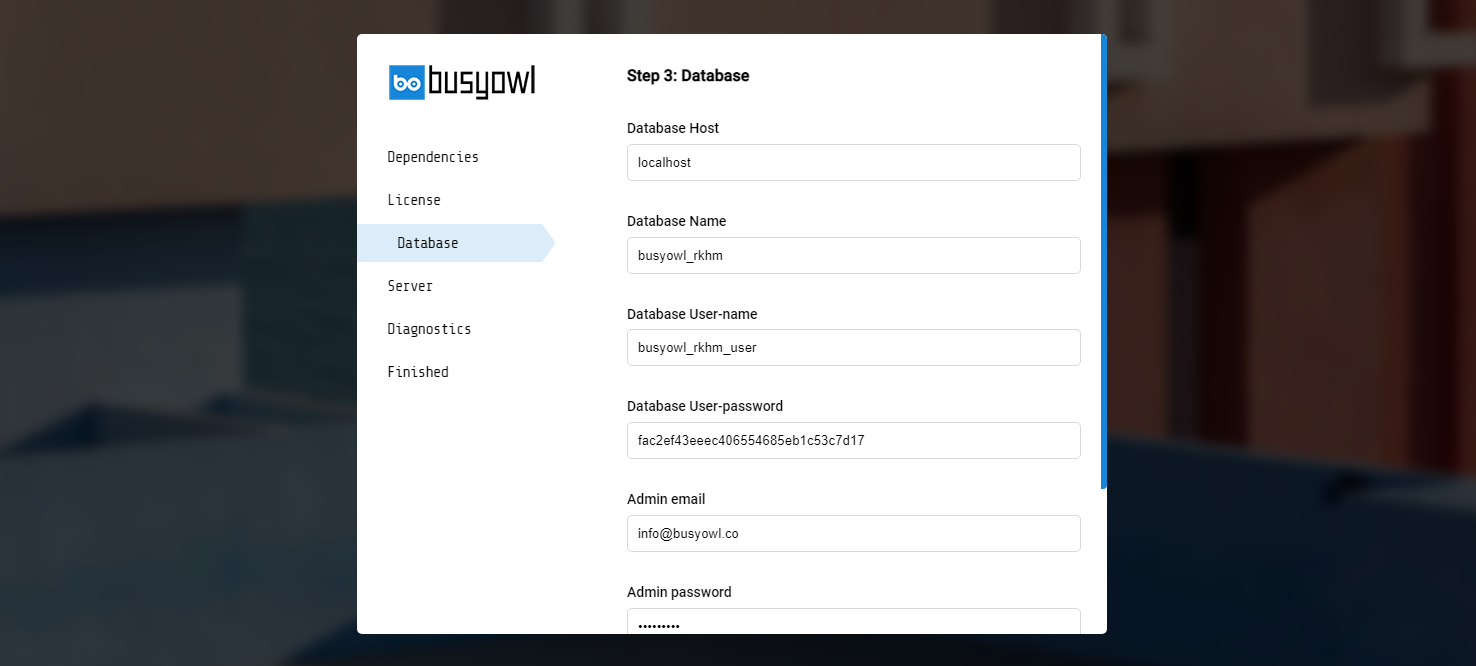
Create a new mysql database, create a new mysql user, make sure mysql user has full access to created database then pass required information to installer.
On the same screen, enter the Admin email and Admin password for your administrator account. The installer imports the database first, then creates this account with the username admin; it is the account you sign in to /admin/ with.
Use an empty database. If the import can't create every table, the installer lists the missing ones — empty the database (drop every table) and try again.
cPanel guide
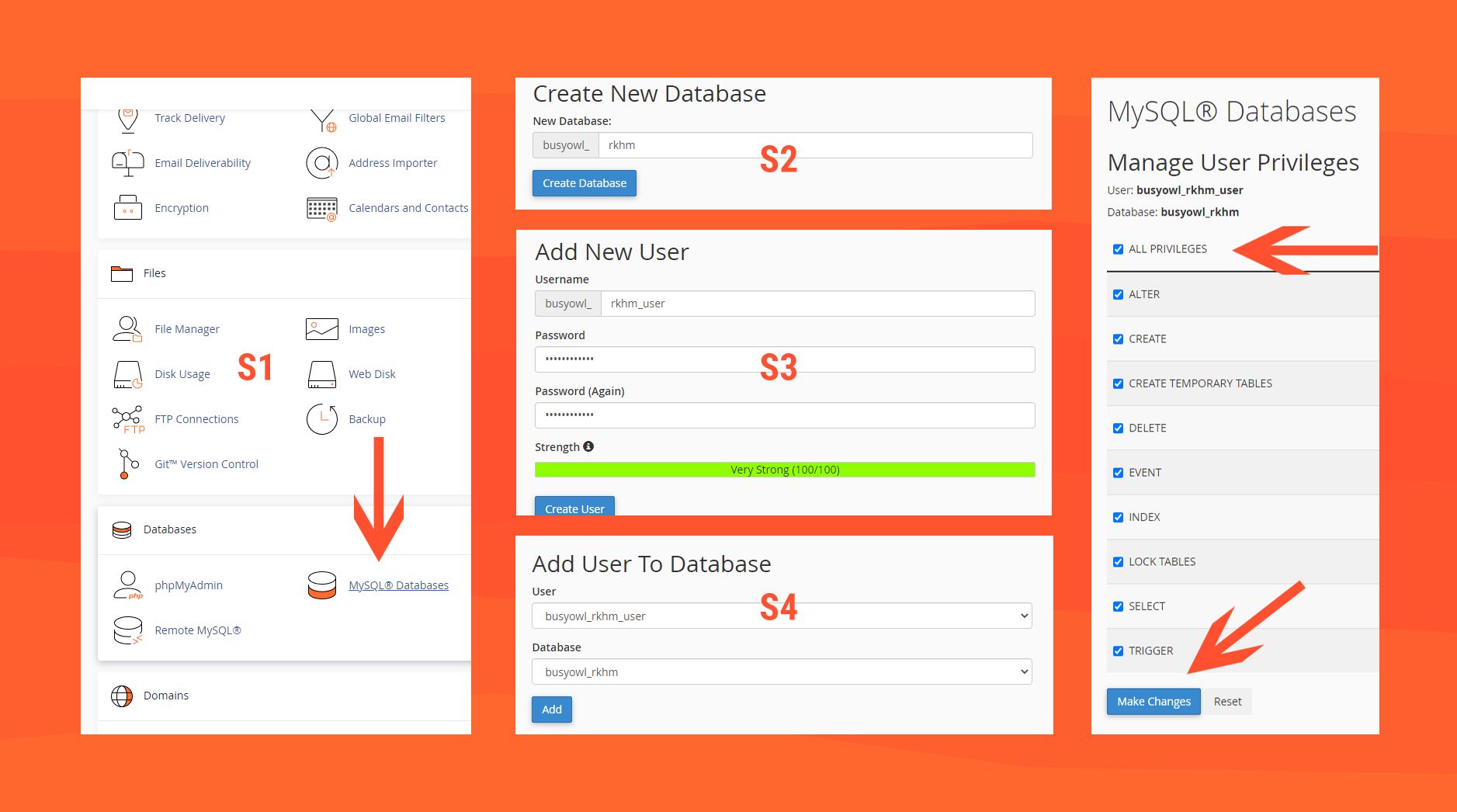
- S1: Head to your website's cPanel and login. Find and click on MySQL Databases
- S2: In the new page, find "Create New Database", choose a name and create a database with it
- S3: Go back to MySQL Databases page, find "Add New User", choose a username & password and create a new user with it
- S4: Go back to MySQL Databases page, find "Add User To Database", select created user & database and click on "Add"
- S5: In the new page, click on "ALL PRIVILEGES" then click on "Make Changes"