



Installing with Docker
Running it in containers, and where the media lives
This guide runs RKHM with Docker Compose on a Linux host: Apache/PHP serves the application, MariaDB stores its data, Caddy provides HTTPS, and a separate container runs RKHM's once-per-minute cron command. RKHM's own installer still handles the license, database import, and first-run setup. Use this with the standard installation steps.
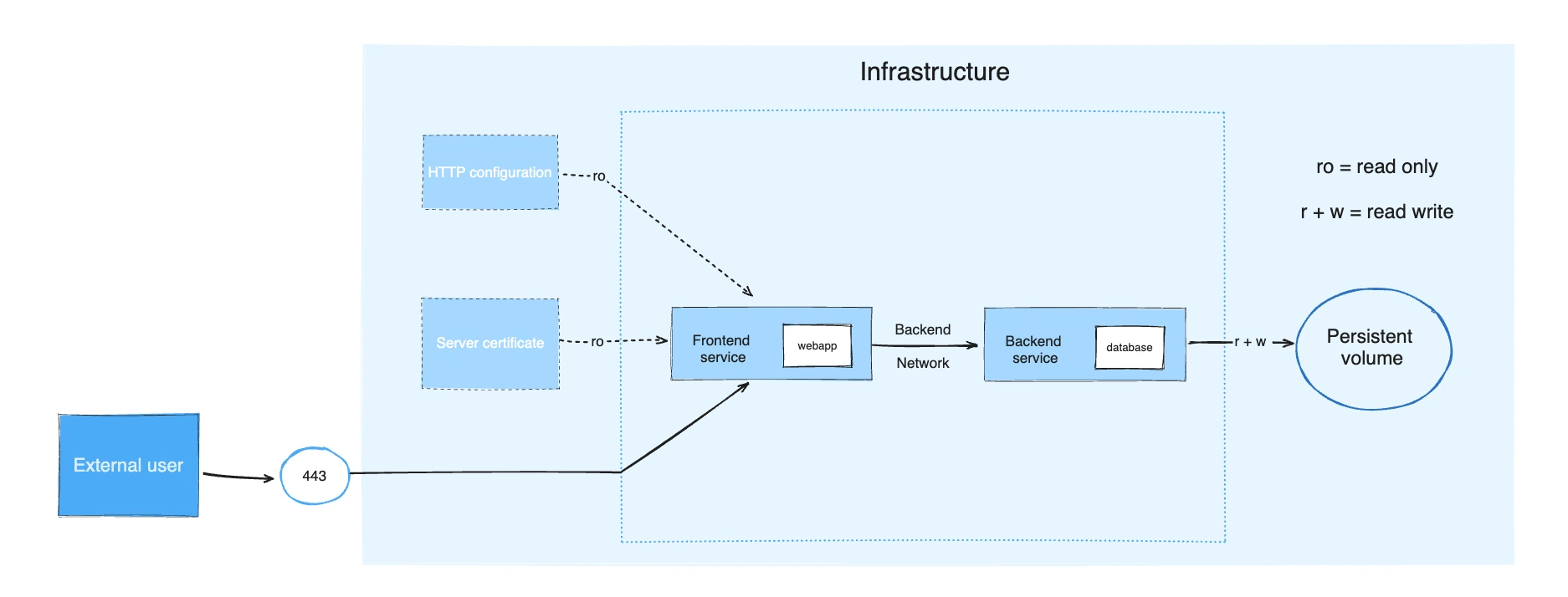
A general Compose application diagram. RKHM adds a scheduler and a persistent site directory. Source: Docker documentation.
Before you begin
- Use a Linux host with Docker Engine and the Docker Compose plugin. Have a domain whose A/AAAA records point to that host, and allow inbound ports 80 and 443. Caddy needs those for a public certificate. If another reverse proxy already owns those ports, adapt the proxy service to your existing HTTPS setup.
- Download the RKHM package and purchase code. Unzip it, then place the contents of its
scriptfolder intosite/. Include every hidden.htaccessfile; RKHM checks their exact contents. Do not use the outer download ZIP as the web root. - This example uses the official PHP 8.3 Apache image and MariaDB 11.4. Confirm that your RKHM release works with the chosen supported PHP version. The installer checks a minimum PHP version and required extensions, but cannot prove compatibility with every later release.
1. Prepare the deployment directory
Create a directory on the host with this layout. Keep secrets outside site/, which Apache serves. site/ is a bind mount, so the same RKHM files appear in both the web and scheduler containers. Docker's Compose network lets RKHM reach the database by its service name db.
rkhm-docker/
├── Dockerfile
├── compose.yaml
├── conf/
│   └── Caddyfile
├── secrets/
│   ├── db_password
│   └── db_root_password
└── site/
    ├── index.php
    ├── .htaccess
    ├── api/
    ├── admin/
    ├── BOF/
    ├── plugins/
    ├── themes/
    ├── files/
    └── installer/
Create secrets/db_password and secrets/db_root_password with different strong passwords, restrict their host permissions, and exclude secrets/ from source control and backups that are shared publicly. Docker mounts these files into MariaDB through Compose secrets. The database password is also entered once in RKHM's installer; it is not passed to the PHP container as an environment variable.
Make site/files/ writable by the PHP process in the container (www-data, UID 33 in this Debian-based image). During installation, RKHM must also be able to write site/api/app/config_user.php and config_license.php: give UID 33 write access to those files if they exist, or temporarily to their parent directory if the installer must create them. Keep the rest of the code read-only to that user where possible. If you later install plugins or themes through RKHM, their directories need appropriate write access too.
Use a complete release package. The development checkout can contain symlinks to a BOF directory outside the RKHM tree; those targets will be absent inside this mount unless you deliberately include them. Check that site/BOF/, site/plugins/, and site/themes/ resolve inside the container. Docker documents that bind mounts show host files at the target path.
2. Build the PHP and Apache image
Save the following as Dockerfile. The official PHP image provides docker-php-ext-install; the image adds RKHM's required cURL, MySQLi, mbstring, GD, and ZIP extensions. It also enables Apache rewrite and headers modules so RKHM's original .htaccess files work. The upload values are examples: raise or lower them for the largest media file you allow. See the official PHP image instructions.
FROM php:8.3-apache-bookworm

RUN apt-get update \
 && apt-get install -y --no-install-recommends \
      cron ffmpeg libcurl4-openssl-dev libfreetype6-dev \
      libjpeg62-turbo-dev libpng-dev libzip-dev libonig-dev \
 && docker-php-ext-configure gd --with-freetype --with-jpeg \
 && docker-php-ext-install -j"$(nproc)" curl gd mysqli mbstring zip \
 && a2enmod rewrite headers setenvif \
 && printf '%s\n' \
      '' \
      'AllowOverride All' \
      'Require all granted' \
      '' \
      'SetEnvIf X-Forwarded-Proto "^https$" HTTPS=on' \
      > /etc/apache2/conf-available/rkhm.conf \
 && a2enconf rkhm \
 && cp "$PHP_INI_DIR/php.ini-production" "$PHP_INI_DIR/php.ini" \
 && printf 'allow_url_fopen=1\nupload_max_filesize=512M\npost_max_size=520M\nmemory_limit=512M\n' \
      > "$PHP_INI_DIR/conf.d/rkhm.ini" \
 && rm -rf /var/lib/apt/lists/*
Do not change or regenerate RKHM's .htaccess files while configuring Apache. The installer hashes them and checks a live rewrite request. Caddy terminates TLS and forwards X-Forwarded-Proto; Apache maps that header to its HTTPS environment for PHP. The web service below is reachable only through Caddy, which prevents clients from sending this header directly to Apache. See Caddy's forwarded-header behavior.
3. Define the services
Save the following as compose.yaml. The database has a named volume; the entire site/ directory is mounted into the web and scheduler containers. The scheduler is in a profile so you can start it at RKHM's Server step, after the database import. Docker documents volume persistence, and MariaDB documents its healthcheck helper.
services:
  proxy:
    image: caddy:2
    restart: unless-stopped
    ports:
      - "80:80"
      - "443:443"
    volumes:
      - ./conf:/etc/caddy:ro
      - caddy_data:/data
      - caddy_config:/config
    depends_on:
      - web

  web:
    build: .
    restart: unless-stopped
    volumes:
      - ./site:/var/www/html
    depends_on:
      db:
        condition: service_healthy

  scheduler:
    build: .
    profiles: ["jobs"]
    restart: unless-stopped
    volumes:
      - ./site:/var/www/html
    depends_on:
      db:
        condition: service_healthy
    command:
      - sh
      - -ec
      - |
        printf '%s\n' '* * * * * www-data /usr/local/bin/php -f /var/www/html/api/admin.php bof_cronjobs=yes' > /etc/cron.d/rkhm
        chmod 0644 /etc/cron.d/rkhm
        exec /usr/sbin/cron -f

  db:
    image: mariadb:11.4
    restart: unless-stopped
    environment:
      MARIADB_DATABASE: rkhm
      MARIADB_USER: rkhm
      MARIADB_PASSWORD_FILE: /run/secrets/db_password
      MARIADB_ROOT_PASSWORD_FILE: /run/secrets/db_root_password
    secrets:
      - db_password
      - db_root_password
    volumes:
      - db_data:/var/lib/mysql
    healthcheck:
      test: ["CMD", "healthcheck.sh", "--connect", "--innodb_initialized"]
      interval: 10s
      timeout: 5s
      retries: 10
      start_period: 30s

secrets:
  db_password:
    file: ./secrets/db_password
  db_root_password:
    file: ./secrets/db_root_password

volumes:
  db_data:
  caddy_data:
  caddy_config:
The MariaDB image creates the rkhm database and user when its data directory is first initialized. If you reuse an existing db_data volume, changing these initialization settings does not replace the existing database or password. The database is intentionally not published on a host port. The web container connects to db:3306 on Compose's internal network. See the official MariaDB image and Compose service discovery.
4. Configure HTTPS
Save this as conf/Caddyfile and replace the hostname with your domain. Point public DNS at the Docker host before starting the proxy. Caddy obtains and renews the certificate automatically when ports 80 and 443 are reachable; its certificate data remains in caddy_data. See Caddy's HTTPS requirements and the official image's storage guidance.
your-domain.com {
    reverse_proxy web:80
}
Use the same final HTTPS address in RKHM's license and web-address steps. The installer also calls its own public URL to verify rewriting, so the domain must resolve and be reachable from the web container. If a firewall or DNS rule prevents that self-request, fix the network path before continuing.
5. Start RKHM and complete its installer
From the directory containing compose.yaml, start the database, web service, and HTTPS proxy. The scheduler profile stays off for now:
docker compose up -d --build
docker compose ps
docker compose exec web php -m
The module list should include curl, mysqli, mbstring, gd, and zip. Visit https://your-domain.com/installer/, then follow RKHM's Requirements, License, and Database steps. At the database step use host db, database rkhm, user rkhm, and the contents of secrets/db_password. localhost would point to the PHP container, not MariaDB.
6. Start the once-per-minute scheduler
At RKHM's Server step, start the scheduler profile:
docker compose --profile jobs up -d schedulerThe scheduler uses the same mounted RKHM files and PHP image as the web container. Its cron entry runs /usr/local/bin/php -f /var/www/html/api/admin.php bof_cronjobs=yes as www-data every minute; the application path and argument match the command generated by RKHM's installer. Wait a minute or two, then refresh the Server step. If the heartbeat stays red, run the same command manually to see its error:
docker compose exec -u www-data web php -f /var/www/html/api/admin.php bof_cronjobs=yesIf you customize the mount path or the install location, update the scheduler's PHP script path to match. Keep exactly one scheduler for the installation, or jobs can run twice. RKHM also checks the unmodified .htaccess files and that its routes work through Apache.
7. Set FFmpeg paths and protect persistent data
The image installs native /usr/bin/ffmpeg and /usr/bin/ffprobe for media features. In RKHM, open Setting → General → External Tools → FFmpeg (and the FFprobe group below it), choose the native binary rather than the bundled static build, set these paths, and use RKHM's test controls. The bundled static build is architecture-specific; the native package follows the container's architecture. See the RKHM FFmpeg guide.
Uploaded tracks, artwork, generated files, and temporary media are stored under site/files/ by default. Because site/ is a host bind mount, recreating the web or scheduler container does not erase them. Back up the database with a consistent dump and also back up site/files/, the generated config files, and any installed or customized plugins and themes. Preserve caddy_data if you want to retain its certificates. See Docker bind mounts and named volumes. Avoid docker compose down -v unless you intentionally want to remove the named database and certificate volumes.
Troubleshooting
- A 404 at
/installer/usually meanssite/contains an extrascript/folder, the package is incomplete, or Apache is not reading the original.htaccessfiles. Confirmindex.phpand.htaccesssit directly insite/. - A database connection error usually means the installer uses
localhost, the MariaDB healthcheck has not passed, or the password differs from the value used when the database volume was first initialized. Usedbas the host and inspectdocker compose ps. - If uploads fail, check the host permissions on
site/files/, available disk space, and the PHP upload limits in the Dockerfile. A missing media conversion may mean FFmpeg or FFprobe is disabled or configured to the bundled static path. - If the Server step reports a missing or corrupted
.htaccess, restore the original package file without editing it. If the file exists but routing fails, confirm Apache's rewrite and headers modules andAllowOverride All. If the cron heartbeat fails, run the manual PHP command above. - When installation succeeds, remove
site/installer/and continue with First run.