



Installing on DirectAdmin
Document root, PHP version and cron on DirectAdmin hosts
DirectAdmin supplies the hosting controls; RKHM's installer still handles the application setup. Use this guide alongside the standard RKHM installation steps. The menu names below describe DirectAdmin's Evolution skin at User level; your host may rename or hide some controls.
Before you begin
- Add the domain or subdomain to your DirectAdmin account and point its DNS to the hosting server.
- Download your RKHM package and purchase code. Follow Upload to make a new ZIP containing the contents of the package's script folder, including hidden
.htaccessfiles. Do not upload the outer download ZIP as the site itself. - Use an empty MySQL or MariaDB database. Have PHP 8.3 or newer (RKHM requires it since v2.1.04) and the modules RKHM checks: cURL, MySQLi, mbstring, GD, ZIP, and
allow_url_fopen. The Requirements page explains the checks.
1. Select the domain and PHP version
In DirectAdmin, work at User level and select the domain you are installing on. Open Account Manager → Domain Setup, then the domain's PHP selector or PHP Settings. Choose PHP 8.3 or newer (RKHM requires it since v2.1.04). DirectAdmin can assign different PHP versions to different domains, so check the selected domain rather than assuming the account default is correct. DirectAdmin's PHP version guide shows where this setting lives.
If RKHM's Requirements screen reports a missing extension or a disabled PHP option, ask the host to enable it for that domain's PHP version. A PHP version selector does not necessarily expose individual modules. DirectAdmin's PHP extensions guide explains how server administrators manage them.
2. Upload to the domain's document root
Open System Info & Files → File Manager. Navigate to domains/your-domain.com/public_html for the domain you selected. That is the usual document root for a main domain; a subdomain or a host with a custom document root can differ. The top-level public_html shortcut may point at the account's default domain, so confirm the domain folder before uploading.
Upload the prepared ZIP into that document root, select it in File Manager, and use Extract. The extracted folder should contain index.php, api/, admin/, and installer/ directly under the document root. If they are inside another script/ folder, move the contents up one level. Delete the upload ZIP after extraction.

DirectAdmin's File Manager toolbar; the exact layout can vary by release. Source: DirectAdmin documentation.
Check for the root .htaccess and the copies inside api/ and admin/. In recent DirectAdmin versions, hidden files can be shown through Skin Options → File Manager → Show hidden files and folders. If your panel does not offer that control, verify the ZIP contents or use FTP/SSH. RKHM checks these files during installation. DirectAdmin documents the hidden-files option here.
If your host keeps HTTPS files in a separate private_html directory, make sure the HTTPS document root serves the same RKHM files before continuing. A pure Nginx setup does not process .htaccess; follow the RKHM Nginx guide or ask your host to apply equivalent rewrite and access rules.
3. Create the database
In DirectAdmin's User level, find MySQL Management or Database Management and choose Create new Database. Enter a database name, create or choose a database user, and save the generated password. DirectAdmin commonly prefixes the database and username with your account name. Copy the full names shown after creation, not just the short names you typed. Confirm that this user has access to the new database. DirectAdmin's database guide confirms the user-level creation path.
When RKHM asks for connection details, enter the full database name and username, the saved password, and the database host supplied by your provider. localhost is common on the same server, but use the host's value if it differs. Let the RKHM installer import its schema into this empty database.
4. Enable HTTPS and open the installer
Open SSL Certificates for the domain and enable the host's automatic ACME certificate, such as Let's Encrypt, if it is not already active. DNS must resolve to the server for domain validation. Wait until https://your-domain.com has a valid certificate. DirectAdmin describes the domain certificate workflow.
Visit https://your-domain.com/installer/. Follow the standard license and database steps. Enter the HTTPS address you intend to keep when the installer asks for your web address, because the purchase certificate is tied to that address.
5. Schedule RKHM's cron job
RKHM's Server step displays the command for your own installation. In DirectAdmin, open Advanced Features → Cron Jobs → Create Cron Job. Put * in the minute, hour, day of month, month, and day of week fields so it runs once per minute. Paste the command shown by RKHM into the command field and save. It will look like this, with your actual path in place of the example:
php -f /home/USERNAME/domains/your-domain.com/public_html/api/admin.php bof_cronjobs=yesUse the path shown by your installer, especially if you installed on a subdomain or a custom document root. If DirectAdmin's cron environment runs a different PHP version from the website, replace php with the absolute CLI path for the domain's selected version supplied by your host. DirectAdmin notes that a generic PHP binary can use the server's first/default version. See its PHP and cron guidance.
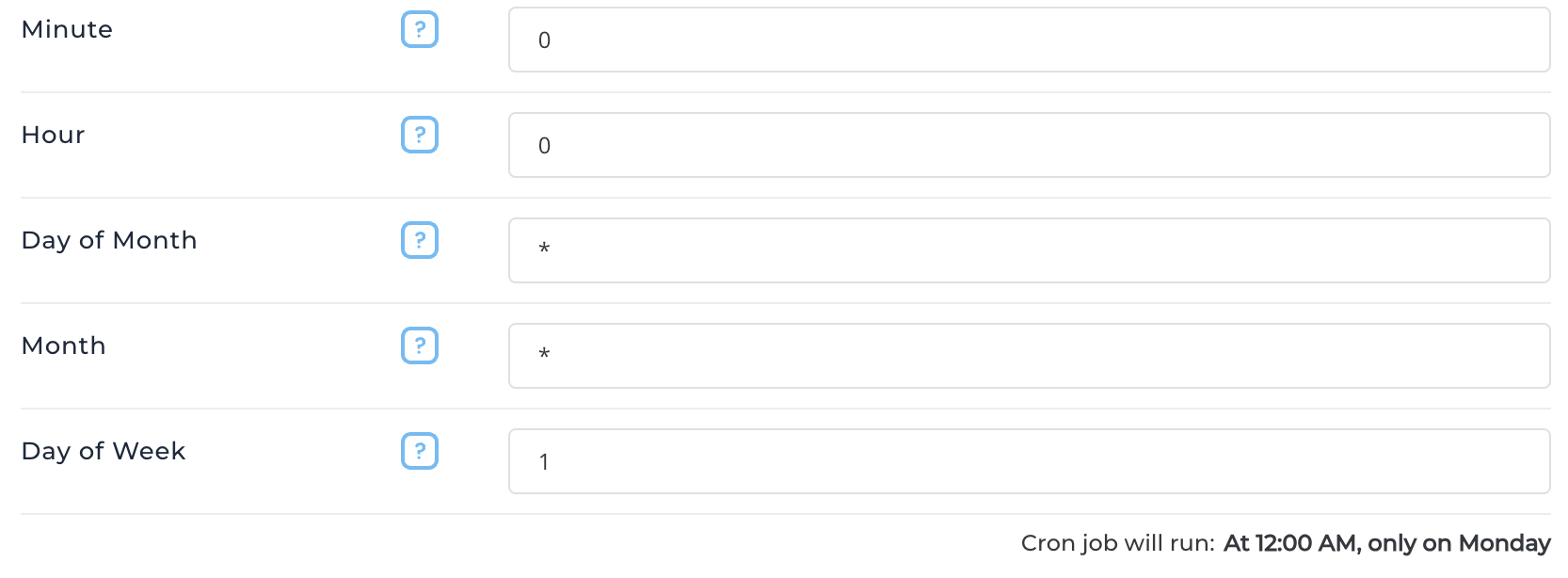
DirectAdmin's cron form and schedule hint. Source: DirectAdmin documentation.
Return to RKHM's Server step after the job has had a minute or two to run. It checks the cron heartbeat, .htaccess files, and timezone. If cron remains red, check the saved schedule, command path, and CLI PHP version. DirectAdmin's cron job guide shows the Create Cron Job path and command examples.
Finish and troubleshoot
- If
/installer/returns 404, confirm the domain's actual document root and that the ZIP did not create an extra parent folder. - If pages other than the homepage return 404, recheck the hidden
.htaccessfiles and whether your web server reads them. Use the Nginx guide for a pure Nginx host. - If the installer reports missing PHP requirements, check the domain's selected PHP version and ask the provider to enable the missing module or option.
- When RKHM finishes, remove the
installer/directory and the uploaded ZIP. Continue with First run.